Mastering Microsoft Edge: 2025 Complete Guide to Features, Setup & Security
🚀 Microsoft Edge 2025 – Getting Started Guide
Why Choose This Browser in 2025
When it comes to selecting a browser in 2025, users look for speed, security, and seamless usability. Thankfully, Microsoft Edge 2025 delivers on all three. Since it’s powered by the Chromium engine, users enjoy blazing-fast performance, compatibility with Chrome extensions, and enhanced syncing.
Moreover, Edge isn’t just another browser — it’s a personalized productivity tool for modern life. Whether you’re switching from Chrome or starting fresh, this section will walk you through everything you need to get started confidently.
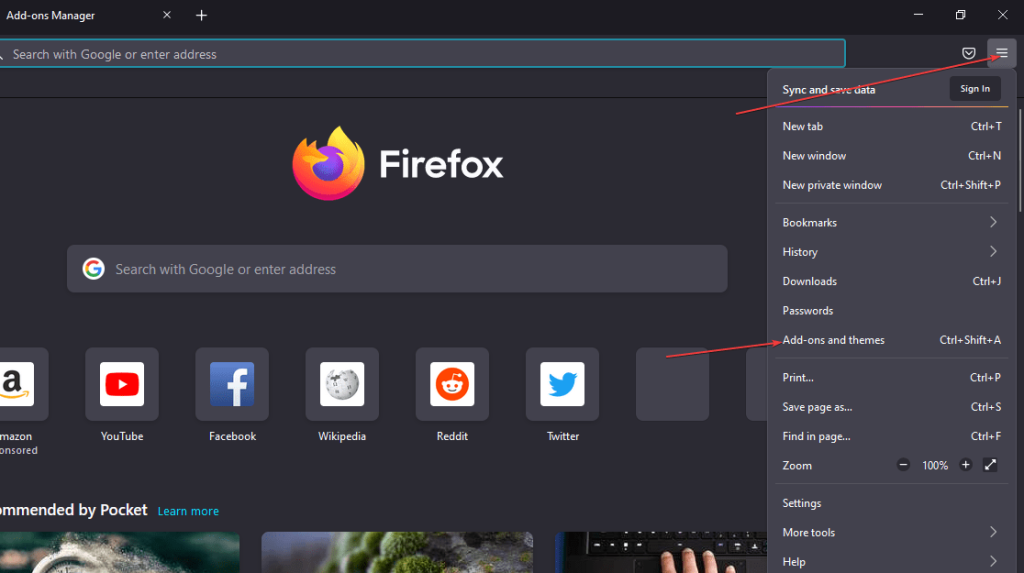
For comparisons, see our internal guides: Google Chrome Guide 2025 and Firefox Browser Guide 2025.
💻 Install on Windows, macOS & Mobile
Getting started with Microsoft Edge 2025 is incredibly simple. While it’s pre-installed on Windows 10 and 11, you can still install it on macOS, Android, and iOS devices. After installation, signing in with your Microsoft account enables syncing. Consequently, your bookmarks, history, passwords, and settings follow you across devices.
- Windows: Visit edge.microsoft.com to download the latest version.
- macOS: Download the .pkg file from the official site and install it.
- Mobile: Use the Play Store or App Store and search for “Microsoft Edge”.
🧭 First-Time Setup & Personalization
Once installed, Microsoft Edge welcomes you with a guided setup. Not only is the process smooth, but it also tailors the browser to your needs.
- Choose a homepage layout: Focused, Inspirational, or Informational.
- Import bookmarks and history from Chrome or Firefox.
- Set sync preferences for history, passwords, and extensions.
- Select your preferred privacy settings.
Because of this personalized onboarding, Edge aligns with your browsing habits right from the start. Furthermore, it eliminates the need to manually configure basic settings later.
🎨 Home Page & Theme Basics
Edge makes customization both intuitive and powerful. To personalize the homepage, open a new tab and click the gear icon. Then choose light, dark, or custom themes; add or remove quick-access tiles; set a background image or use the daily Bing wallpaper; and control content visibility such as news and weather.
Additionally, under Settings → Start, Home, and New Tabs, you can configure startup behavior. As a result, every session begins exactly the way you prefer. For more UX tips, compare with Opera 2025.
🔧 Interface Essentials & Sidebar
The layout is designed for clarity and speed. Most tools and menus are accessible within two clicks. Key elements include an intelligent address bar, vertical or horizontal tabs, a favorites bar, and the sidebar.
- Go to Settings → Sidebar → Customize Sidebar.
- Enable tools like Calculator, Translator, or Microsoft 365 apps.
Thanks to its modular design, Edge adapts to your workflow. Consequently, switching tasks or accessing apps becomes faster.
👥 Profiles & Guest Browsing
Multiple user profiles make it ideal for families and professionals alike. Each profile maintains its own extensions, history, and settings.
- Click the profile icon at the top right.
- Select “Add Profile”.
- Choose between signing in or using guest mode.
This is especially useful for separating work and personal contexts. Moreover, guest sessions remain private and temporary.
📂 Import Data from Other Browsers
Migrating is straightforward: Settings → Profiles → Import browser data → pick Chrome/Firefox → choose bookmarks, history, passwords, and extensions. Since Edge supports the Chrome Web Store, the transition feels natural and complete.
🌐 Outbound help: Official Microsoft Edge support
🧠 Quick Why-Choose Summary
Edge provides performance, personalization, and ease-of-use. Furthermore, it ensures seamless integration across devices — something that stands out in 2025’s competitive landscape. See also: Chrome Guide 2025.

⚙️ Microsoft Edge 2025 Productivity Features That Truly Boost Workflow
Unlike traditional browsers, Microsoft Edge 2025 includes smart tools that help you accomplish more with less effort. Consequently, you can focus on tasks instead of juggling tabs. Since these features are built in, there’s no need to install extra software.
- Vertical Tabs for cleaner multitasking.
- Collections to organize links, notes, and visuals.
- Immersive Reader for distraction-free articles.
- Sleeping Tabs to save memory.
- Workspaces for real-time shared sessions.
- PDF Editor to view, annotate, and sign files.
Moreover, these innovations reduce context switching; therefore, productivity improves across the board.
🧩 Best Extensions for Microsoft Edge 2025 (Add-ons & Chrome Web Store)
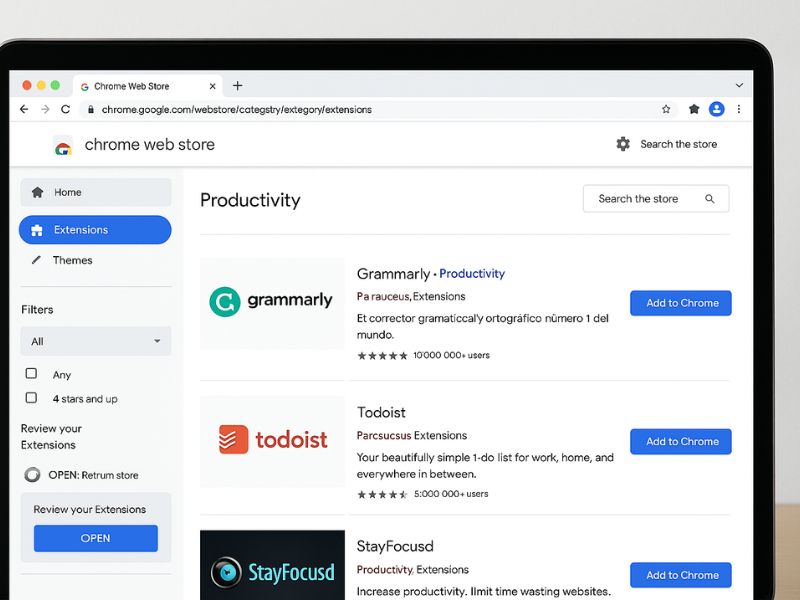
Microsoft Edge 2025 supports the Microsoft Edge Add-ons Store as well as the Chrome Web Store; as a result, your favorite tools remain available across ecosystems.
Productivity: Grammarly, Evernote Web Clipper, Todoist
Privacy & Security: uBlock Origin, DuckDuckGo Privacy Essentials, Bitwarden
Utilities: Dark Reader, Google Translate, Print Friendly & PDF
🌐 Browse more: Edge Add-ons Store. Meanwhile, for comparisons, see our internal guides: Firefox Guide 2025 and Chrome Guide 2025.
🧠 Built-in Organization Tools in the Edge 2025 Browser
In addition, the browser ships with powerful native utilities; consequently, you save both time and effort.
- Tab Groups with labels and colors.
- Web Capture for annotated screenshots.
- Sidebar Apps for Office, Outlook, and Calculator.
- Command Palette (Ctrl + Shift + Space) for quick actions.
Furthermore, these integrated options minimize distractions and, therefore, help you stay focused.
⌨️ Microsoft Edge 2025 Keyboard Shortcuts for Faster Navigation
- Ctrl + T: New tab
- Ctrl + W: Close tab
- Ctrl + Shift + T: Reopen closed tab
- Ctrl + J: Downloads
- Ctrl + Shift + N: InPrivate window
Accordingly, your hands stay on the keyboard, and navigation becomes noticeably faster.
🔐 Security Features in Microsoft Edge 2025 That Work in the Background
- Microsoft Defender SmartScreen for phishing and malware.
- Password Monitor for breach alerts.
- Enhanced Security Mode for risky sites.
As a result, you remain protected without extra configuration. For deeper privacy perspectives, explore our internal Firefox guide as well.
✅ Who Benefits Most from This Setup
Students, developers, and remote workers all gain from the speed and integrations here. Ultimately, Microsoft Edge 2025 adapts to your role and reduces friction. Therefore, you can work smarter every day.
Explore more add-ons: Add-ons Store; similarly, compare features with the internal Chrome Guide 2025.
🔒 Microsoft Edge 2025 Privacy & Tracking Prevention
Privacy is a growing concern; therefore, Microsoft Edge 2025 simplifies protection with tools that work quietly in the background. Moreover, these defaults help you browse confidently without complex setup.
- Tracking Prevention: Choose Basic, Balanced, or Strict.
- SmartScreen: Instantly blocks phishing and malware.
- Password Monitor: Alerts you after known breaches.
- InPrivate Mode: Consequently, no history or cookies are saved.
- Clear Data on Exit: Additionally, cleans cache automatically.
For additional details, see Microsoft’s official security overview. For context, compare with our internal Firefox Browser Guide 2025 and Chrome Guide 2025.
🔄 Microsoft Edge 2025 Sync Across All Your Devices
In today’s multi-device workflow, seamless sync truly matters. Consequently, signing in with your Microsoft account keeps bookmarks, passwords, and open tabs consistent across platforms.
- Log in with your Microsoft account.
- Next, open Settings → Profiles → Sync.
- Then, toggle data types: bookmarks, passwords, history, tabs, and more.
Additionally, synced data is encrypted; therefore, you retain both portability and safety.
👨👩👧👦 Family Safety & Kids Mode in Edge 2025
Edge isn’t just for professionals; rather, it is also family-friendly. As a result, Kids Mode provides curated content and age-appropriate controls that encourage safer exploration.
- Pre-approved sites and filtering rules.
- Colorful, kid-friendly themes.
- Age presets for 5–8 and 9–12.
- Parent activity reports; moreover, easy to review.
🚀 Microsoft Edge 2025 Performance Tweaks That Matter
- Sleeping Tabs: Therefore, memory use drops on idle tabs.
- Efficiency Mode: Consequently, battery life improves.
- Startup Boost: Additionally, the browser opens faster.
- Extension Manager: As needed, disable heavy add-ons quickly.
For alternative tuning ideas, you may also review our Opera 2025 guide.
🛠️ Developer Tools in Microsoft Edge 2025 for Power Users
If you build or test websites, these integrated tools are invaluable; moreover, they remove the need for extra software.
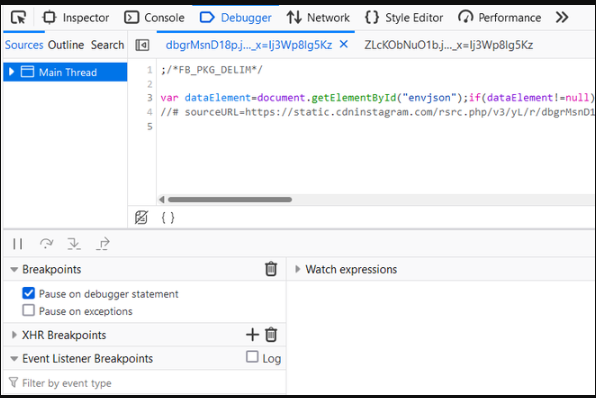
- DevTools (F12): Inspect, debug, and profile performance.
- Command Palette (Ctrl + Shift + Space): Therefore, trigger quick actions instantly.
- Web Capture: Additionally, take and annotate screenshots.
- Split View (experimental): Compare two pages side-by-side.
For broader perspective, compare developer workflows with our internal Firefox guide.
🔁 Final Thoughts on Microsoft Edge 2025
In conclusion, Microsoft Edge 2025 blends usability, privacy, and speed into a single, adaptable package. Therefore, whether you secure a family device, multitask at work, or test modern websites, the browser keeps up gracefully.
Finally, for deeper documentation, consult Microsoft Edge’s security portal; additionally, for internal comparisons, see our Chrome 2025 guide.