
How to Use Opera’s Built-in VPN
How to Use Opera’s Built-in VPN for Safe Browsing
Introduction to Opera’s Built-in VPN
Opera browser includes a built-in VPN service that helps users browse the internet with better privacy and protection. Unlike third-party tools, Opera’s VPN comes pre-installed and is free to use. You don’t need to install extra extensions. Therefore, this guide will show how to activate and benefit from Opera’s private browsing option using their VPN feature.
Benefits of Opera’s Private VPN Feature
In today’s digital age, securing your online identity is more important than ever. That’s where Opera’s VPN proves useful. This tool helps shield your location and encrypts browser traffic. Consequently, websites can’t easily track you.
Moreover, you can unblock websites restricted by region. Whether you’re browsing from home or on a public network, Opera provides a basic but effective VPN solution. The service is ideal for users who want extra privacy without paying for a premium VPN plan.
How to Enable the VPN in Opera Browser
Follow these easy steps to turn on the private connection inside Opera:
- Launch the Opera browser (latest version).
- Click the Opera icon in the top-left corner, then go to “Settings.”
- From the left menu, choose “Privacy & Security.”
- Scroll down and toggle on the “VPN” option.
- After enabling, a small blue “VPN” icon appears in the address bar.
Now, Opera will route your web activity through its secure proxy servers, giving you a safer browsing experience. As a result, your online privacy improves immediately.
Using the VPN Interface Inside Opera
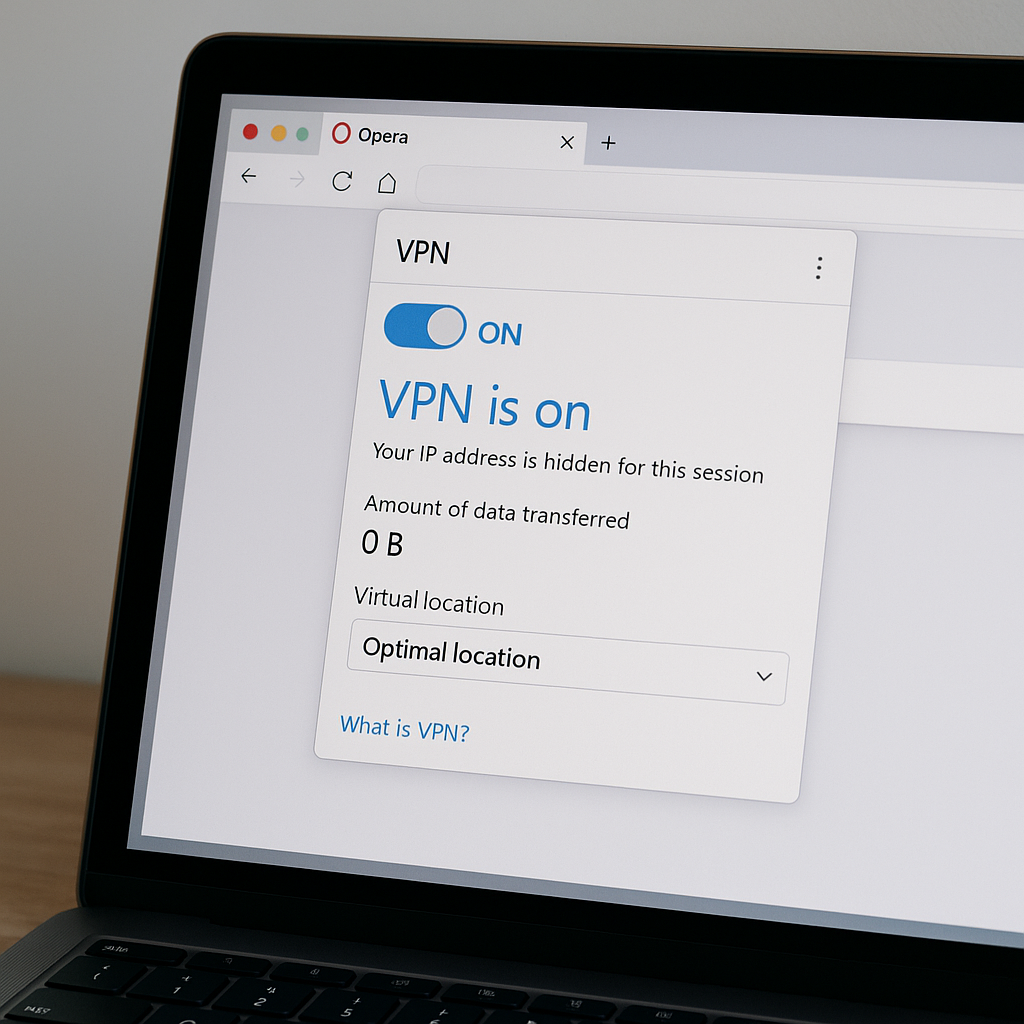
After turning it on, you can manage the VPN from the address bar. Click the icon to see:
- Whether it’s turned on or off
- The total data used
- The selected virtual region (Americas, Europe, or Asia)
Even though you can’t pick specific countries, these regions help you bypass location-based content blocks efficiently. In addition, switching regions often improves browsing performance.
Performance of Opera’s Free VPN
Built-in VPNs sometimes reduce browsing speed. However, Opera’s servers are relatively fast for day-to-day use. While it might not be suitable for streaming or gaming, it’s perfect for reading, researching, or private browsing.
If your connection slows down, try switching the region from the VPN panel. Often, selecting a different location improves performance. Consequently, you get a smoother experience.
How Safe Is Opera’s Browsing Protection?
Opera’s VPN encrypts your traffic, making it harder for third parties to spy on your browsing. Moreover, it doesn’t log your activity, which is a plus. However, it doesn’t support torrenting and doesn’t mask traffic outside the browser.
That said, it’s still a good tool for users who want basic privacy without installing anything new. Therefore, it serves well as an entry-level VPN solution.
Official Source for Opera VPN Users
For more details, tips, and technical updates, visit Opera’s official VPN documentation here:
Opera VPN Official Info Page
Explore More Browsers with Built-in Privacy Tools
- Google Chrome 2025: Smart Tips
- Firefox 2025: Privacy Features
- Edge Browser Privacy Setup
- Brave Browser for Private Surfing
- Opera Browser 2025 Features
- Safari 2025: Apple’s Safe Choice
What’s Coming Next?
Now that you’ve learned how to activate and use Opera’s free VPN, stay with us. In the next section, we’ll discuss more advanced settings, when to use the VPN, and how to avoid common browsing issues. Consequently, you will be able to use Opera VPN more effectively.
Advanced Techniques to Use Opera VPN Efficiently
Once you’ve activated the VPN feature in Opera, it’s time to explore how to make the most of it. While the setup is simple, you can do much more by adjusting a few smart options. For example, changing your virtual location can help access blocked websites. If one region seems slow, switching to another may instantly improve speed.
Opera allows region selection between the Americas, Europe, or Asia. Though country-level choices aren’t available, these broader zones help bypass many geo-restrictions. In addition, they keep browsing flexible and private.
When Should You Use Opera’s Built-in VPN?
There are several moments when enabling Opera’s private connection adds a security layer. Below are some key scenarios:
- On public Wi-Fi: Whether you’re at a cafe or airport, unsecured networks can be risky. Therefore, the built-in VPN protects your browsing.
- While traveling abroad: Some websites or news platforms might be unavailable in certain countries. Consequently, changing your virtual location solves this.
- Browsing sensitive content: When researching health issues, legal topics, or financial advice, it’s wise to mask your identity. As a result, your private information stays secure.
Opera’s solution is free and easy to use. Hence, it’s perfect for casual users who want quick privacy.
How to Temporarily Disable the VPN
- Click on the VPN icon in the address bar.
- Toggle it off for the current website.
- Reload the page — your regular IP address will be used.
This temporary action helps resolve most compatibility issues without disabling the VPN entirely. Moreover, it saves time when dealing with banking or secure portals.
Comparing Opera’s VPN with Premium VPN Providers
To understand Opera’s offering better, let’s compare it with paid services like NordVPN or ExpressVPN. As a result, you can decide whether Opera’s free version is enough or if you need an upgrade.
Common Issues and Their Simple Fixes
- VPN not connecting: Restart your browser or check for pending updates. Consequently, this often solves the problem.
- Slow speed: Change the virtual region or close background downloads. Moreover, clearing cache may help.
- Website not loading: Turn off VPN temporarily, clear cookies, then reload. As a result, most pages will load normally.
Best Practices to Stay Anonymous Using Opera VPN
When combined, a few privacy habits make Opera VPN much stronger. For example, use incognito mode for sensitive browsing. In addition, clear cookies often and log out of personal accounts. Therefore, your online footprint remains minimal.
Final Thoughts on Using Opera VPN
Opera’s built-in VPN is a strong tool for anyone looking to protect their browser activity with minimal effort. It doesn’t cost anything, works right away, and doesn’t need technical setup. However, it lacks advanced VPN features.
To summarize:
- Opera VPN hides your IP while browsing. Moreover, it keeps casual sessions private.
- It works well on public Wi-Fi or while traveling. Consequently, you stay safe on unsecured networks.
- It won’t protect external apps or provide full-device encryption. However, for browser privacy, it’s effective.
If you’re new to VPNs or just want simple security without commitment, this free solution is a great place to begin. Therefore, start with Opera’s built-in VPN before considering premium services.