
Mastering Google Chrome: Full Guide to Features, Setup & Security (2025)
✅ Ultimate Guide to Google Chrome: Installation, Features, and Privacy Tips (2025)
🧭 Introduction to Google Chrome: The Ultimate 2025 Guide
In today’s fast-paced digital world, having a reliable web browser is essential. That’s where Google Chrome comes in — the world’s most popular browser known for its speed, simplicity, and powerful features. Whether you’re a student browsing academic resources, a freelancer managing multiple tabs, or a business owner syncing tools across devices, Google Chrome is designed to make your internet experience seamless and secure.
Moreover, this comprehensive 2025 guide will help you understand everything about Chrome — from installation and customization to advanced tools that boost your productivity and protect your privacy. Therefore, let’s begin with how to install Chrome across different devices and explore its most notable features.
🔧 How to Install Google Chrome on Any Device
One of the best things about Google Chrome is its universal compatibility. No matter which device or platform you use — Windows, macOS, Android, or iOS — Chrome is optimized for all. Consequently, here’s how you can install it step-by-step:
✅ Installing Google Chrome on Windows
- First, visit the official Google Chrome website.
- Then, click the “Download Chrome” button on the homepage.
- Once downloaded, run the installer file (.exe).
- Afterward, follow the prompts during installation.
- Finally, Chrome will launch automatically after setup is complete.
👉 Tip: After installing, pin Chrome to your taskbar for quick access. Additionally, you can compare browsers later with our internal Firefox Browser Guide 2025 or Microsoft Edge 2025.
🍏 Installing Google Chrome on macOS
- Go to the Chrome download page.
- Next, download the .dmg file specifically for Mac.
- Once the file is downloaded, double-click to open it.
- Then, drag the Chrome icon into the Applications folder.
- Finally, launch Chrome and confirm any required permissions.
➡️ Pro Tip: You can set Chrome as your default browser from System Preferences → General. Furthermore, see our comparison post Chrome vs Brave for alternatives.
📱 Installing Google Chrome on Android
- Open the Google Play Store on your device.
- Then, type “Google Chrome” into the search bar.
- Next, select the app from the results and tap Install.
- Within seconds, Chrome will be available on your home screen.
🔄 You can also enable automatic updates for Chrome in the Play Store settings for better security. Additionally, check our internal Opera Browser 2025 guide if you prefer built-in VPN features.
🍎 Installing Google Chrome on iOS (iPhone/iPad)
- Head to the App Store on your iPhone or iPad.
- After that, search for “Google Chrome.”
- Then, tap Get, and confirm with Face ID or password.
- Once installed, tap Open and sign in to sync your data.
💡 Want to make Chrome your default browser on iOS 14 or later? Go to Settings → Chrome → Default Browser App → Set to Chrome. Consequently, your links will open in Chrome by default. In addition, bloggers can follow our internal guide: Start a WordPress Blog.
⭐ Top Features of Google Chrome Browser
Now that Chrome is installed, let’s dive into what makes it so powerful. In fact, its user-centric design and feature-rich environment are what keep it ahead of other browsers. Moreover, the features below will help you work faster and safer.
🚀 1. High-Speed Browsing
Google Chrome is optimized for speed. Web pages load almost instantly, even with multiple tabs open. Thanks to Google’s V8 JavaScript engine, the performance remains smooth and fast. Furthermore, frequent updates keep performance consistent over time.
🔄 2. Google Account Sync
With Chrome, you can sign in using your Google account and sync your:
- Bookmarks
- Browsing history
- Saved passwords
- Autofill data
- Open tabs
This means you can start browsing on your phone and continue from the same spot on your laptop! Additionally, enabling 2-Step Verification is recommended for security; consequently, your synced data stays protected.
🕵️ 3. Incognito Mode for Private Browsing
Need to browse without saving history or cookies? Incognito Mode is just a click away. Simply press Ctrl + Shift + N (or tap the three dots menu → New Incognito Tab). ➡️ Useful for researching sensitive topics or signing into multiple accounts. However, your employer/ISP may still see traffic; therefore, treat it as a local privacy tool.
🧩 4. Chrome Extensions
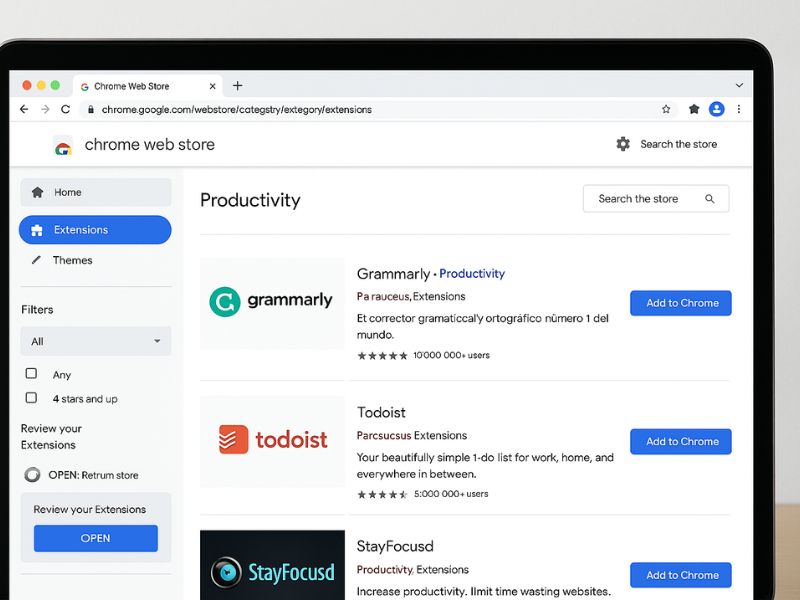
Customize your browser with thousands of Chrome extensions available in the Chrome Web Store. From grammar checkers to ad blockers, there’s a tool for every task. Moreover, install only trusted extensions to avoid risks; consequently, you’ll keep Chrome fast and secure.
🧷 5. Integrated Google Services
Chrome offers one-click access to essential tools like Gmail, Google Drive, Google Docs, and Google Calendar. As a result, your work becomes faster and more efficient. Additionally, creators can optimize workflow using tips from our internal guide: WordPress Browser Plugins.
🔒 6. Built-in Security Features
Security is a top priority in Google Chrome. Automatic updates ensure your browser is always protected from the latest threats. It also warns you about malicious websites and blocks harmful downloads. Therefore, you should keep updates enabled. You can download the browser easily from the 👉 official Google Chrome website to get started on any device.

🔒 Mastering Google Chrome Privacy, Security & Power Features (Part 3)
By now, you’ve installed Google Chrome, customized your settings, and boosted your productivity using helpful extensions and shortcuts. But there’s more you can do! Accordingly, this final part focuses on privacy, security, and advanced features of Chrome — including how to troubleshoot common issues and tips for mobile users. Ultimately, if you truly want to master Chrome in 2025, this section is for you.
🔐 Google Chrome Privacy & Security Settings
As cyber threats and tracking become more advanced, Chrome’s built-in security tools help you stay protected online. With just a few adjustments, you can secure your personal data, control what websites can access, and browse safely. Moreover, these settings are easy to revisit anytime, ensuring long-term protection.
🧹 1. Clear Browsing Data
Over time, your browser collects cookies, cache files, and history which can slow down performance and compromise privacy. Therefore, clear them regularly using these steps:
- Go to Settings → Privacy and Security
- Click “Clear Browsing Data”
- Choose a time range (e.g., last hour, 7 days, all time)
- Select items like cache, cookies, and history
- Click Clear Data
💡 Doing this routinely helps your browser run faster and reduces tracking. Additionally, scheduling automatic clean-ups after each session can further enhance security.
🔧 2. Manage Site Permissions
Control what access websites have to your device — such as microphone, camera, notifications, location, and more. Consequently, you’ll minimize accidental data exposure. Furthermore, limiting permissions makes your browsing safer on shared devices.
- Open Settings → Privacy and Security → Site Settings
- Review and adjust permissions for: Microphone, Camera, Notifications, Pop-ups, Clipboard access
⚠️ For better privacy, deny permissions to sites you don’t trust or recognize. In addition, revisit these permissions monthly to avoid overlooked risks.
🛡️ 3. Enable Enhanced Safe Browsing
- Go to Settings → Privacy and Security
- Click “Security”
- Choose “Enhanced Protection”
✅ Chrome will automatically block suspicious downloads and warn you about unsafe sites. Moreover, you can learn more from Google’s help page on Enhanced Safe Browsing. As a result, keeping this enabled ensures real-time defense against threats.
🍪 4. Block Third-Party Cookies
- Navigate to Settings → Privacy and Security → Cookies and other site data
- Select “Block third-party cookies”
🔒 This setting helps reduce invasive tracking across websites. However, if a site breaks, you may temporarily allow cookies and then revert the setting. Therefore, use this wisely for maximum balance between functionality and privacy.
🛠️ Fixing Common Google Chrome Issues
Even though Chrome is stable, occasional problems can still appear. Fortunately, most issues have simple fixes. Consequently, here are practical solutions:
🚫 Chrome Not Launching?
- Restart your computer and try again.
- Reinstall Chrome from the official website.
- Check if your antivirus is blocking Chrome by mistake.
🐢 Chrome Feels Slow?
- Clear your browsing data.
- Disable unnecessary extensions.
- Turn off hardware acceleration: Settings → System → Uncheck “Use hardware acceleration when available”.
⚙️ Bonus Tip: Keep Chrome updated to the latest version for performance improvements. Additionally, compare speed tips in our internal Firefox Guide 2025.
💥 Chrome Keeps Crashing?
- Update your graphics drivers.
- Run Chrome without extensions (incognito mode disables them by default).
- Create a new user profile: corrupted profiles can cause crashes.
📌 You can also reset Chrome settings by going to Settings → Reset and clean up. Furthermore, consult the official Chrome DevTools documentation if you’re debugging sites.
🔄 Syncing Chrome Across Devices
- Click your profile icon (top-right corner).
- Sign in to Chrome using your Google account.
- Choose what to sync — bookmarks, history, passwords, extensions, etc.
🔐 Make sure you use 2-Step Verification on your Google Account for added security. Consequently, your data remains safer across devices. Moreover, syncing ensures continuity when switching between phone and desktop.
🧪 Using Chrome Developer Tools (Advanced Users)
Chrome’s Developer Tools, or DevTools, are a suite of features used for debugging and analyzing websites. Whether you’re a web developer or just curious, these tools provide deep insights. Additionally, they are updated frequently with new capabilities.
To open DevTools: Press F12 or Ctrl + Shift + I.
Key Tabs in DevTools: Elements, Console, Network, Performance. Moreover, learning these tabs will drastically improve your debugging speed. Therefore, mastering them saves time while improving site performance.
💡 Great for developers who want to optimize site performance or debug scripts. Consequently, your pages become faster and more stable. Explore the official DevTools docs.
📱 Google Chrome Mobile Browser Tips
⚡ Enable Lite Mode (Android Only)
- Open Chrome → Tap the three dots → Settings.
- Scroll down to Lite mode.
- Enable it.
Consequently, Lite Mode helps save mobile data and improves load times, especially in areas with weaker connections.
🎙️ Use Voice Search
On both Android and iOS, tap the microphone icon on the search bar to perform quick voice queries. Therefore, this is particularly helpful while driving or multitasking. Moreover, it ensures hands-free convenience.
💾 Save Pages Offline
- Tap the three dots on any page.
- Select “Download”.
You can access the saved version even when you’re offline. In fact, this feature is ideal for flights, commuting, or patchy networks. Additionally, it reduces reliance on constant internet access.
📄 Switch Tabs by Swiping
On mobile, swipe left or right across the address bar to switch between tabs quickly. This gesture is smooth and much faster than manually selecting each tab. Meanwhile, learn more about safe browsing practices from Google’s help guide on 👉 Enhanced Safe Browsing. Facing persistent issues? Reinstall Chrome from the 👉 official Chrome download page. Curious about DevTools? Explore the 👉 Chrome DevTools documentation.
🧠 Final Thoughts: Why Google Chrome Still Leads in 2025
Google Chrome continues to dominate the browser space because of its:
- Seamless cross-device sync
- Regular security updates
- Huge extension library
- Clean user interface
- Strong privacy options
Whether you’re a casual user or an advanced developer, Chrome gives you the flexibility, speed, and safety you need to stay productive in 2025 and beyond. 🌟 Make the most of its tools, and your digital life will feel more organized and efficient than ever. Additionally, for broader context, see our internal guides: Firefox 2025, Edge 2025, and Opera 2025. Ultimately, Chrome remains the most balanced option in speed, privacy, and usability.