
Mastering Mozilla Firefox: Complete 2025 Guide to Speed, Privacy & Power Features

🦊 Firefox Browser Guide 2025 – Install, Setup & Privacy Made Simple
In today’s fast-paced digital world, everyone needs a browser that is not only fast but also secure, flexible, and easy to use. That’s why Mozilla Firefox stands out. This Firefox Browser Guide 2025 walks you through every essential step — from installation and setup to activating powerful privacy features. Whether you’re a student, a freelancer, a developer, or simply a casual user, Firefox has something for everyone.
🔧 Easy Installation Steps – Firefox Browser Guide 2025
Before diving into its advanced features, you must first install the browser correctly. Fortunately, Mozilla has made this process incredibly simple.
🖥️ Installing on Windows or macOS – Firefox Browser Guide 2025
To begin with, go to the official Mozilla Firefox website.
Then, click the “Download Firefox” button.
For Windows users, open the .exe file and follow the prompts.
Likewise, on macOS, open the .dmg file and drag Firefox into your Applications folder.
After installation, Firefox will launch automatically. Therefore, from that moment on, you can begin browsing instantly.
📱 Installing on Android or iOS – Firefox Browser Guide 2025
Firefox is just as powerful on mobile devices. To install it on Android, open the Google Play Store, search for “Mozilla Firefox”, and tap Install.
On iOS, head over to the App Store, search for Firefox, and tap Get.
Once installed, you can start browsing immediately. However, to access enhanced features, it’s a good idea to create or sign in to your Firefox account. That way, you’ll be able to sync bookmarks, history, passwords, and even open tabs across all your devices.
🌐 Why Choose Firefox? – Firefox Browser Guide 2025
Although Chrome and Edge continue to dominate market share, Firefox brings several unique advantages. In fact, many privacy-focused users now prefer it for good reasons.
🔐 Privacy Comes First – Firefox Browser Guide 2025
Unlike other browsers, Firefox prioritizes your privacy. By default, it blocks social trackers, crypto miners, and fingerprinting scripts. Additionally, to make it even better, go to Settings → Privacy & Security and enable Strict Mode. As a result, your online activities stay more private without needing extra plugins.
⚡ Lightning-Fast Speed and Lower Memory Usage – Firefox 2025
One of Firefox’s biggest advantages is its Quantum engine, which loads pages faster than many other browsers. Additionally, it uses less RAM. Even with multiple tabs open, Firefox remains responsive. Consequently, it runs smoothly on older computers and budget phones alike.
🧩 Powerful Customization Features – Firefox Browser Guide 2025
Another major benefit of Firefox is how flexible it is. You can:
- Set a custom homepage
- Choose from thousands of browser themes
- Install powerful extensions like ad blockers, grammar checkers, or dark mode togglers
- Rearrange toolbar buttons for easier navigation
Moreover, Firefox doesn’t force you to use one layout. Instead, it allows you to make the browser work the way you want.
🔐 Privacy Tools That Matter – Firefox Browser Guide 2025
Now that your browser is installed, let’s look at the tools that make Firefox one of the most privacy-focused browsers available today.
🛡️ Enhanced Tracking Protection – Firefox Browser Guide 2025
First and foremost, Firefox includes built-in tracking protection. This blocks advertisers from following you across the web.
To activate this:
- Go to Settings → Privacy & Security
- Select Strict under Enhanced Tracking Protection
Thanks to this setting, you can browse with greater peace of mind. Learn more.
🌐 DNS over HTTPS (DoH) – Firefox Browser Guide 2025
By default, Internet Service Providers (ISPs) can see which websites you visit. Thankfully, Firefox includes DNS over HTTPS, or DoH, which encrypts that data.
To enable:
- Navigate to Settings → General → Network Settings
- Check the box for Enable DNS over HTTPS
Therefore, your website lookups remain private — even from your ISP. DoH details.
🧱 Facebook Container Extension – Firefox 2025
Worried that Facebook is tracking your browsing outside their platform? Firefox offers a dedicated extension called Facebook Container. You can install it from addons.mozilla.org. Once installed, Facebook is isolated from the rest of your web activity. Thus, your non-Facebook browsing cannot be tracked by the platform.
🕵️ Use Private Browsing Mode – Firefox Browser Guide 2025
When you want to browse without saving your history, cookies, or passwords:
- Press Ctrl + Shift + P to open a Private Window
- Use it for online banking, research, or any sensitive task
Because Firefox deletes all session data automatically in this mode, it’s ideal for temporary or shared use.
🔁 Want to Compare Firefox with Chrome?
Still wondering which browser is better? 👉 Check our full Google Chrome Guide 2025. This post compares features like speed, privacy, extensions, and user experience. Additionally, you can explore Microsoft Edge 2025 and Opera Browser 2025 for more context.
✅ Summary – Firefox Browser Guide 2025
Let’s summarize what we covered so far:
- ✅ How to install Firefox on Windows, macOS, Android, and iOS
- ✅ Why Firefox excels in privacy and performance
- ✅ Key features like Enhanced Tracking Protection and DNS over HTTPS
- ✅ Add-ons like Facebook Container and tools like Private Browsing Mode
In conclusion, Firefox isn’t just another browser — it’s a secure, customizable, and fast tool for modern internet users. Whether you’re tech-savvy or a beginner, Firefox 2025 offers a balanced mix of control, speed, and security.
….………………………………
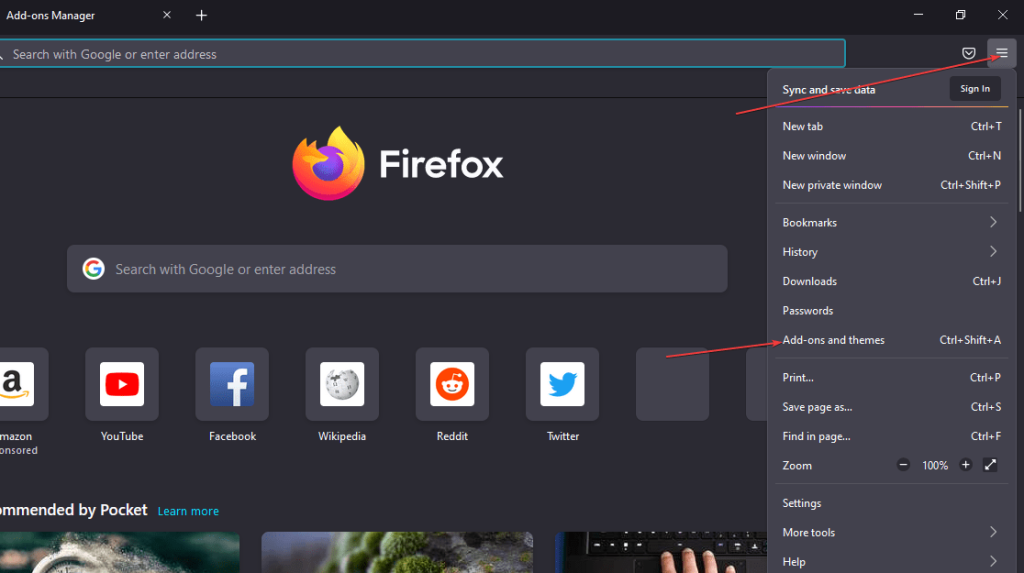
🧩 Enhance Firefox Like a Pro – Firefox Browser Guide 2025
After completing the installation and privacy setup in Part 1, it’s time to unlock the full potential of Firefox. This part of the Firefox Browser Guide 2025 helps you discover the most powerful add-ons, personalization tools, and time-saving features. Not only will your experience improve, but you’ll also gain more control over your browser. Furthermore, whether you’re working from home, attending online classes, or simply browsing casually — these tools will help Firefox work better, faster, and smarter for you.
🔌 Add Essential Firefox Add-ons for Better Productivity – Firefox 2025
Firefox is already powerful on its own. However, with the right add-ons, it becomes even more efficient. Fortunately, thousands of free extensions are available to supercharge your experience.
🛠️ Boost Productivity with Must-Have Tools – Firefox Browser Guide 2025
If you want to write better, manage tasks, and stay secure, consider these add-ons:
- Grammarly – Corrects spelling and grammar in real time
- Bitwarden – Saves and autofills passwords securely
- ToDoist – Organizes your work and deadlines within the browser
These tools don’t just save time — they also reduce stress. As a result, your daily workflow becomes smoother.
🛡️ Strengthen Privacy and Security – Firefox Browser Guide 2025
Because online tracking is common, using privacy add-ons is essential. Here are some trusted options:
- uBlock Origin – Blocks intrusive ads and trackers
- DuckDuckGo Privacy Essentials – Automatically enforces HTTPS and hides trackers
- Privacy Badger – Detects and blocks invisible trackers intelligently
Not only do these protect your data, but they also make browsing faster by blocking unnecessary scripts.
🔧 Useful Everyday Extensions – Firefox 2025
Even casual users can benefit from these helpful add-ons:
- Dark Reader – Enables dark mode on all websites
- Print Friendly & PDF – Cleans up web pages before printing or saving as PDF
- LanguageTool – Checks grammar in multiple languages and offers suggestions
Therefore, these extensions make Firefox more user-friendly and efficient. 📥 You can easily install them from addons.mozilla.org.
🎨 Customize Firefox’s Look and Feel – Firefox Browser Guide 2025
🏠 Set a Productive Start Page – Firefox 2025
By default, Firefox opens a new tab page. But you can change that: Go to Settings → Home. Additionally, set your own homepage or choose frequently visited websites. In doing so, you’ll save time every time you launch the browser.
🎭 Try New Themes – Firefox Browser Guide 2025
Firefox offers thousands of stylish themes. You can switch to Dark Mode for less eye strain, try Minimalist or Seasonal Themes, or choose Animated Themes for a fun experience. To apply one, visit Settings → Extensions & Themes → Themes. Then, activate the one you like best. Thus, your browsing becomes more enjoyable visually.
🔍 Search Smarter with Firefox – Private Search
Most browsers use Google by default. However, Firefox gives you full control over your search engine. To change it, go to Settings → Search, then select DuckDuckGo, Startpage, or Ecosia. As a result, your searches become more private and less ad-driven.
🧰 Customize the Toolbar for Efficiency – Firefox Browser Guide 2025
Because every second counts, having an optimized toolbar helps. Firefox allows full customization. To adjust the toolbar, right-click the toolbar → Customize Toolbar → drag and drop buttons or remove what you don’t use. Not only does this improve navigation, but it also creates a cleaner interface.
⌨️ Master Firefox Keyboard Shortcuts – Firefox 2025
Instead of using your mouse, you can rely on shortcuts to get things done faster. These work across Windows, macOS, and Linux.
Action — Shortcut
Open new tab — Ctrl + T
Open private window — Ctrl + Shift + P
Bookmark a page — Ctrl + D
Close current tab — Ctrl + W
Reopen closed tab — Ctrl + Shift + T
Switch between tabs — Ctrl + Tab
Focus address bar — Ctrl + L
Even if you remember just a few, your productivity will improve significantly.
📱 Optimize Firefox on Mobile Devices – Firefox Browser Guide 2025
Firefox mobile is more than just a simplified version. Let’s explore features that make mobile browsing more effective.
🔖 Organize Tabs with Collections – Firefox Mobile 2025
You can group tabs into Collections: save tabs related to shopping, research, or social media; access them later in one tap; keep everything neatly organized. Consequently, you avoid clutter and confusion.
🔄 Sync Devices Seamlessly – Firefox Account
Want to access your data everywhere? Tap the ☰ menu → Tap Sign in to Firefox → log in or create an account → choose what to sync (e.g., history, bookmarks, open tabs). Once setup is complete, your data stays updated across desktop and mobile.
🕶️ Browse Privately on Mobile – Firefox Private Tab
To keep things confidential: long-press a link → Tap Open in Private Tab. This prevents Firefox from saving any browsing data — especially useful on shared devices.
🔁 Swipe Like a Pro – Firefox Mobile Gestures
Firefox mobile includes helpful gestures: swipe left/right to switch between tabs; pull down to refresh; long-hold back button to view tab history. Altogether, these make your mobile experience faster and more intuitive.
🔗 Still Wondering About Chrome? (Internal Links)
If you’re still comparing browsers, read our guides: Google Chrome Guide 2025, Microsoft Edge 2025, and Opera Browser 2025. Additionally, see our comparison Chrome vs Brave.
✅ Summary – Firefox Browser Guide 2025
Let’s recap what you learned: ✅ Best Firefox add-ons for productivity and privacy; ✅ how to customize your homepage, themes, and toolbar; ✅ smart search engine switching for better privacy; ✅ time-saving shortcuts for keyboard users; ✅ mobile features like sync, collections, and gestures. In short, Firefox gives you full control — across both desktop and mobile.
….……………………….
🛠️ Troubleshooting, Dev Tools & Final Thoughts – Firefox Browser Guide 2025
Welcome to the final part of the Firefox Browser Guide 2025. So far, you’ve explored installation, customization, essential add-ons, and mobile features. Now, it’s time to address some of the most common problems users face and explore the built-in developer tools. Additionally, we’ll look at how to sync Firefox across devices. Ultimately, you’ll understand why Firefox still remains a top choice in 2025.
⚠️ Fixing Common Firefox Issues – Firefox Browser Guide 2025
Although Firefox is known for its stability, occasional glitches may still occur. Fortunately, most of these problems are easy to resolve. By following the steps below, you can quickly restore optimal performance.
🔁 When Firefox Freezes or Becomes Unresponsive – Firefox 2025
If your browser suddenly stops responding, don’t panic. First, restart your computer or smartphone. Then, go to Settings → Privacy & Security → Clear Data. In many cases, this solves the issue instantly. However, if that doesn’t help, disable any recently installed add-ons. You may also refresh Firefox by navigating to Help → More Troubleshooting → Refresh Firefox. As a result, your browser gets restored while keeping bookmarks and saved data intact. Refresh Firefox
🐢 Speeding Up a Slow Browser – Firefox Performance
Sometimes Firefox may slow down, especially when too many tabs are open. In such cases, type about:performance in a new tab. There, you can identify which tabs or add-ons are using excessive memory. After that, close unused tabs or remove heavy extensions. Moreover, switching to a lightweight theme and updating Firefox to the latest version often improves speed significantly. Make it faster
🌐 Resolving Page Loading Failures – Firefox DoH
If a website fails to load properly, start by checking your internet connection. Then, try turning off DNS-over-HTTPS temporarily under Settings → General → Network Settings. Furthermore, restarting your modem or reviewing firewall settings can also help. In most scenarios, these steps resolve loading problems without much hassle. About DoH
👨💻 Exploring Firefox Developer Tools – Firefox Browser Guide 2025
Apart from regular browsing, Firefox is also a favorite among developers. In fact, it comes with powerful built-in tools for testing, debugging, and optimizing websites.
🧪 Access Dev Tools – Firefox DevTools
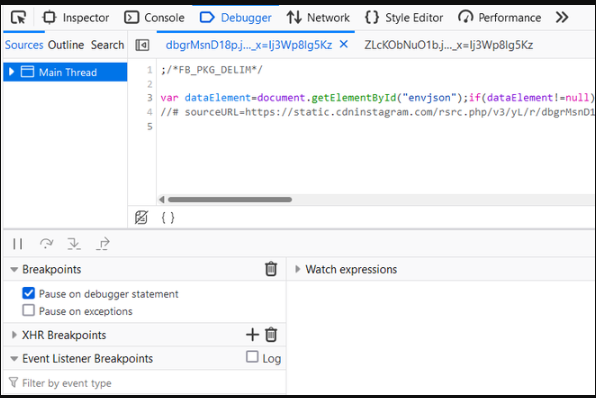
To begin, press F12 or Ctrl + Shift + I. This opens the Developer Tools interface. Here, you’ll find features like the Inspector, Console, and Network tabs. DevTools docs
🔍 Real-Time Inspection – MDN Page Inspector
Using the Inspector tab, you can view and edit HTML or CSS in real time. Moreover, it lets you highlight grid and flexbox layouts instantly. As a result, adjusting styles and layouts becomes easier and faster. MDN – Page Inspector
🌐 Analyze Network Performance – MDN Network Monitor
Go to the Network tab to monitor page load times. Not only can you detect slow-loading elements, but you can also track server responses. Consequently, this helps reduce load times and improve user experience. MDN – Network Monitor
🛠️ Debugging JavaScript Efficiently – MDN Debugger
The Console shows live JavaScript errors and logs. Meanwhile, the Debugger allows you to set breakpoints and examine variables step-by-step. Therefore, developers can resolve coding issues faster without third-party tools. MDN – Debugger
📱 Simulate Mobile Devices – Responsive Design Mode
Firefox’s Responsive Design Mode is another valuable tool. Just click the device icon in DevTools. From there, you can test how a site looks on smartphones or tablets. You may even simulate gestures like pinch-to-zoom or swipe. This ensures your website works well across screen sizes. MDN – RDM
🔄 Sync Firefox Across Devices – Firefox Account
Nowadays, many users switch between phones, tablets, and PCs. Thankfully, Firefox offers a smooth syncing feature. This allows you to keep your bookmarks, history, passwords, and tabs consistent on all devices.
🚀 Set Up Firefox Sync – Firefox Browser Guide 2025
First, click the ☰ menu and select “Sign in to Firefox.” Then, log in or create a Mozilla account. After that, choose the types of data you want to sync. Once you log in on other devices, everything stays in sync automatically. As a result, your browsing experience becomes seamless no matter where you are. Sync setup
✅ Why Firefox Still Leads in 2025 – Final Review
Despite tough competition from Chrome, Edge, and Brave, Firefox remains a powerful and ethical browser choice. But what exactly makes it so special?
🔐 Privacy by Default – Firefox 2025
Unlike other browsers, Firefox protects your data out of the box. Features like Enhanced Tracking Protection, DNS-over-HTTPS, Facebook Container, and Private Browsing Mode come pre-installed. Therefore, you don’t need to install extra tools to stay safe online.
⚡ Lightweight and Fast – Firefox Quantum
Thanks to its Quantum engine, Firefox uses less memory while loading pages faster. Even when multiple tabs are open, performance stays smooth. This is especially useful on older laptops and mid-range mobile devices.
🧩 Open-Source and Community-Driven – Mozilla
Firefox is proudly open-source. That means anyone can inspect the code or contribute improvements. In addition, its development is driven by a non-profit organization — Mozilla. As a result, users can enjoy transparency and security, free from corporate tracking.
🔗 Internal Comparisons (Chrome/Edge/Opera)
Still trying to decide between Chrome and Firefox? 👉 Visit our Google Chrome Guide 2025, plus read Microsoft Edge 2025 and Opera Browser 2025 to compare.
🟢 Final Thoughts – Firefox Browser Guide 2025
To summarize, here’s what you’ve learned across this 3-part guide: ✅ How to install Firefox on Windows, macOS, Android, and iOS; ✅ how to activate privacy features like DoH, ETP, and Private Browsing; ✅ the best add-ons and visual customization tips; ✅ mobile features like Sync, Collections, and Private Tabs; ✅ troubleshooting techniques and how to use Developer Tools. In conclusion, Firefox is more than just a browser — it’s a secure, fast, and fully customizable platform built for privacy-conscious users. Whether you’re browsing casually or building websites professionally, Firefox in 2025 is an excellent and future-proof choice.