Google Chrome Tips & Tricks You Should Know in 2025
Google Chrome Tips 2025: Smarter, Faster, Safer Browsing
In 2025, Google Chrome continues to lead the way in speed, security, and features. However, many users still miss out on its best tools. Thankfully, by applying these Google Chrome Tips 2025, you can supercharge your browser with ease. Moreover, from tab management to memory-saving tricks, Chrome hides many productivity gems that, when used consistently, transform everyday browsing.
🔍 Why You Should Explore Chrome’s Hidden Features – Chrome Tips
Even though Chrome is already fast, it can do far more than most people realize. For instance, Google keeps shipping subtle improvements that quietly enhance browsing. Consequently, learning a handful of features gives you greater control over tabs, resources, and privacy. In addition, being intentional about setup saves minutes every day. For comparisons and context, consider reading our detailed breakdown of alternatives in Chrome vs Brave, since, ultimately, choosing the right defaults matters.
🧠 Tip 1: Organize Tabs with Chrome Tab Groups – Google Chrome Tips 2025
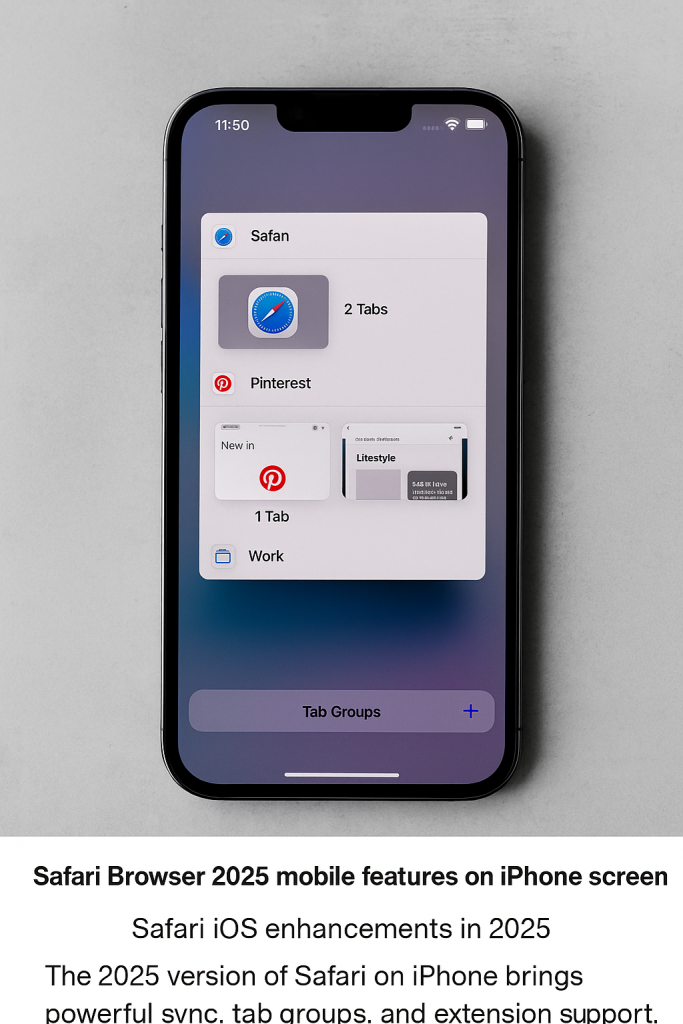
Do you open many tabs while working or studying? If so, Chrome’s Tab Groups is essential. Simply right-click on a tab and select “Add to new group,” then assign a name and color. Consequently, you can group tabs for research, shopping, entertainment, or client projects. In addition, you can collapse groups to reclaim space, which, in turn, reduces visual noise and mental fatigue.
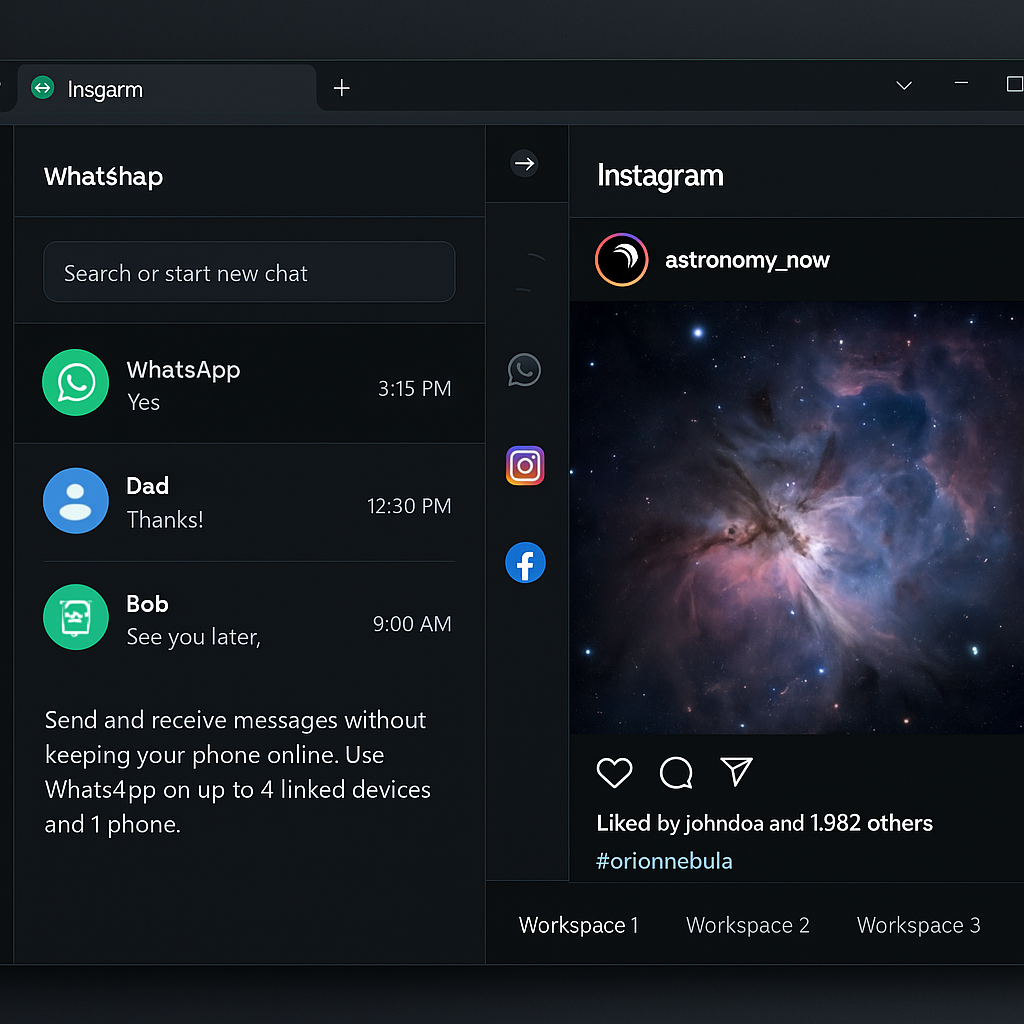
Practically speaking, create groups like “Reading,” “Tasks,” and “References.” Moreover, pin the most important group so it stays visible. Therefore, when context switching, you jump back in seconds instead of re-searching pages. For design-focused browsing, you may also explore Opera’s sidebar and workspaces to see how other browsers structure multitasking.
⚡ Tip 2: Boost Performance Using Memory Saver – Chrome 2025
While dozens of tabs are open, RAM usage often spikes. Luckily, Chrome’s Memory Saver helps. Head to chrome://settings/performance and enable it. Then, Chrome automatically pauses inactive tabs so foreground work remains smooth. As a result, laptops run cooler and battery life improves. Furthermore, heavy tools—like Figma, Sheets, or IDEs—feel snappier because background pages stop competing for memory. If you value granular control elsewhere, you might compare with Firefox’s performance controls as well.
🔎 Tip 3: Use the Omnibox Like a Command Line – Google Chrome Tips
Instead of switching tabs for small tasks, type queries directly in the address bar. For example, “300 USD to BDT,” “45*16,” or “define latency.” Chrome shows answers instantly—no need to press Enter. Moreover, you can search site-specific shortcuts like “pm2browser.com tips” to jump straight into internal results. Consequently, this tiny habit compounds into hours saved monthly. For more productivity crossovers, skim our WordPress setup walkthrough to learn quick-launch shortcuts for your own site.
👥 Tip 4: Separate Work/Personal with Profiles – Chrome 2025
Click the top-right avatar → “Add” to create profiles for work, school, or personal use. Each profile has its own bookmarks, extensions, and history. Consequently, you reduce context bleed: personal notifications no longer distract during meetings, while work plugins don’t bloat a casual profile. In addition, profiles sync independently, which, therefore, keeps devices cleaner. For complementary ideas, review plugin discipline in WordPress Browser Plugins.
📸 Tip 5: Take Screenshots Without Extensions – Chrome Tips
Rather than installing another extension, press Ctrl + Shift + S (or use the sharing menu) to capture the page. Consequently, you minimize permissions risk, reduce extension overhead, and still document pages quickly. Moreover, fewer extensions often mean faster cold starts and fewer update prompts. Meanwhile, if you love built-ins, compare with Opera’s native tools for inspiration.
🌐 Tip 6: Customize the New Tab Page – Google Chrome Tips
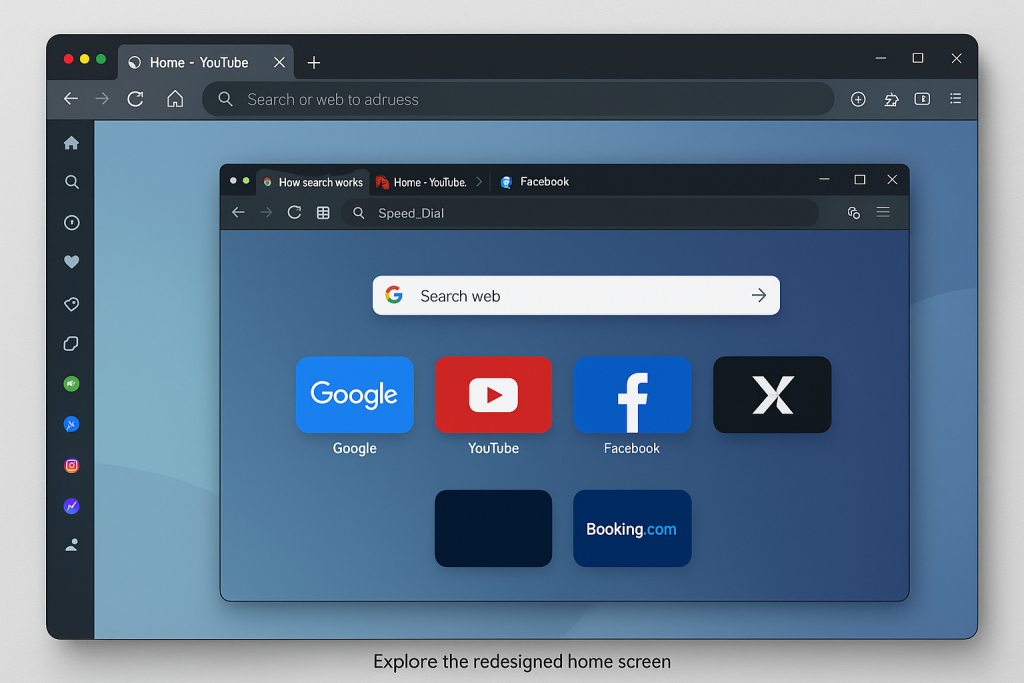
By default, the new tab page is plain; however, clicking “Customize Chrome” lets you add a background, theme, and quick links. Consequently, your workspace becomes visually pleasant and functionally faster. Moreover, placing top five destinations on the grid reduces hunt time throughout the day. For further ideas, revisit the Chrome Guide 2025 layout section and adopt a consistent icon scheme.
🔐 Tip 7: Harden Logins with Chrome Password Manager
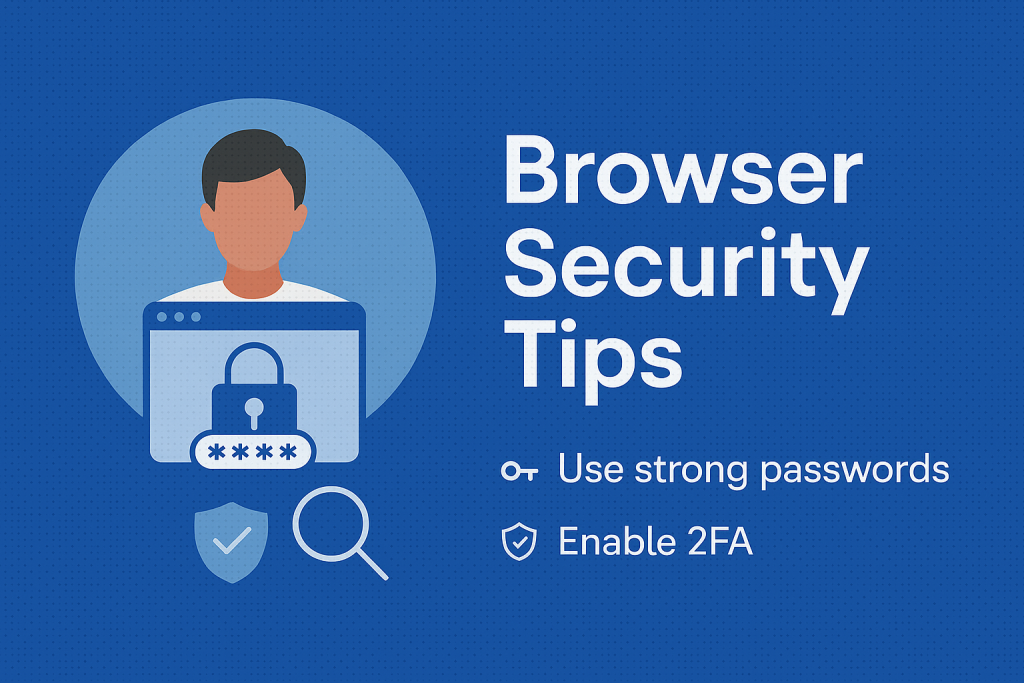
Navigate to chrome://password-manager to audit credentials. Chrome flags weak, reused, or compromised passwords; therefore, you can rotate them proactively. In addition, enable 2-Step Verification where possible. Moreover, autofill streamlines logins across sites without copying from sticky notes. On the other hand, if you juggle several ecosystems, evaluate export options and keep an encrypted backup offline.
📲 Tip 8: Sync Across Devices—Without Losing Focus
Sign in with your Google account to sync bookmarks, history, open tabs, and extensions. Consequently, you can open a tab on your phone and continue it on desktop seamlessly. Meanwhile, disable sync for categories you don’t need to keep noise down. For example, sync bookmarks and passwords, yet, pause history if you prefer a clean slate between devices. For platform thinking, glance at Edge 2025 which tightly ties into Windows profiles.
Pro Tip: Create a lightweight “Focus” profile that syncs only passwords and a handful of bookmarks. Therefore, when deep-working, you avoid extension clutter while retaining secure sign-ins.

Google Chrome Tips 2025 — Performance, Omnibox & Profiles
⚡ Tip 2: Boost Performance Using Memory Saver – Chrome 2025
While browsing with many tabs, RAM usage often spikes. Luckily, Chrome’s new Memory Saver helps reduce that. Just head to chrome://settings/performance and turn it on. Then, Chrome will pause inactive tabs automatically. As a result, your laptop runs cooler, and battery life improves. In addition, active tabs remain fast. For alternatives, see Firefox Browser Guide 2025.
🔎 Tip 3: Use the Omnibox for Quick Calculations – Google Chrome Tips
Instead of switching tabs to Google something, use Chrome’s Omnibox. For example, type “300 USD to BDT” or “45*16” right into the address bar. Chrome will show answers instantly—no need to press Enter. Moreover, the Omnibox supports weather, definitions, and unit conversions. Consequently, this speeds up daily tasks significantly. See our WordPress Blog Setup guide for tips on using search shortcuts.
👥 Tip 4: Separate Profiles for Work and Personal Use – Chrome 2025
Switching between different activities is easier with Chrome Profiles. Each profile has separate bookmarks, extensions, and history. Additionally, it helps reduce distractions. Therefore, while working, you won’t see personal social media tabs. For productivity comparisons, check WordPress Browser Plugins.
📸 Tip 5: Take Screenshots Without Extensions – Chrome Tips
Instead of using third-party extensions, use Chrome’s native screenshot tool. This method is not only faster but also safer. After all, fewer extensions mean fewer risks. Consequently, built-in tools make browsing smoother. For extra built-ins, check Opera’s native tools.
🌐 Tip 6: Customize Your New Tab Page – Google Chrome Tips
By default, Chrome’s new tab is plain. However, clicking “Customize Chrome” allows full personalization. You can set a background, change themes, and add quick links. As a result, your browser becomes more welcoming and efficient. For inspiration, see Google Chrome Guide 2025.
Google Chrome Tips 2025 — Focus, Privacy & Resources
🧘 Tip 9: Enable Focus Mode for Distraction-Free Browsing
When you want distraction-free browsing, Focus Mode is extremely helpful. Simply right-click on a tab and choose “Focus this tab.” Consequently, you can concentrate fully on one task at a time. Meanwhile, if you want alternatives, explore Firefox Guide 2025 with similar modes.
📖 Tip 12: Turn on Reader Mode for Clean Reading
Webpages are often cluttered with ads, banners, or pop-ups. Thankfully, Chrome’s Reader Mode removes these distractions. Enable it by visiting chrome://flags/#enable-reader-mode. Then, you can click the Reader icon whenever available. As a result, you’ll enjoy cleaner pages. Similarly, see Opera’s reading tools.
🎯 Tip 13: Adjust Chrome Site Permissions
Privacy is a major concern in 2025. Chrome allows you to control what each website can access. Click the padlock icon beside the URL. There, you can block camera access, microphone use, or notifications. Consequently, your online activity remains secure. On the other hand, Edge 2025 offers similar privacy settings.
🔗 Useful Internal & External Resources
- Full Google Chrome Guide 2025
- Firefox Browser Guide 2025
- Microsoft Edge 2025
- Opera Browser 2025
- Chrome vs Brave
- Start a WordPress Blog
- WordPress Browser Plugins
✅ Final Thoughts: Apply These Google Chrome Tips 2025 Today
In conclusion, these expert-level Google Chrome Tips 2025 help you unlock better speed, safety, and organization. While some features are brand new, others are underused. Nevertheless, applying them will improve your browsing. Therefore, take action today. Whether you’re a casual user or a professional, Chrome’s hidden features can make a big difference. Happy browsing!
📩 Love browser tips? Visit PM2Browser.com and subscribe for more updates!